From Scenario Authoring
To Learner Feedback
Instructors and admins can create scenarios, assign them to cohorts, and track outcomes. Learners practice conversations and oral presentations, then receive rubric-based feedback.
Instructor Workflow
This is the step-by-step workflow instructors and admins use in ForTheWards.
Set Up People And Cohorts
Open People, add your learners, and place them into cohorts. A cohort is a group of learners who will receive the same assignment, such as an MS3 clerkship group or intern class.
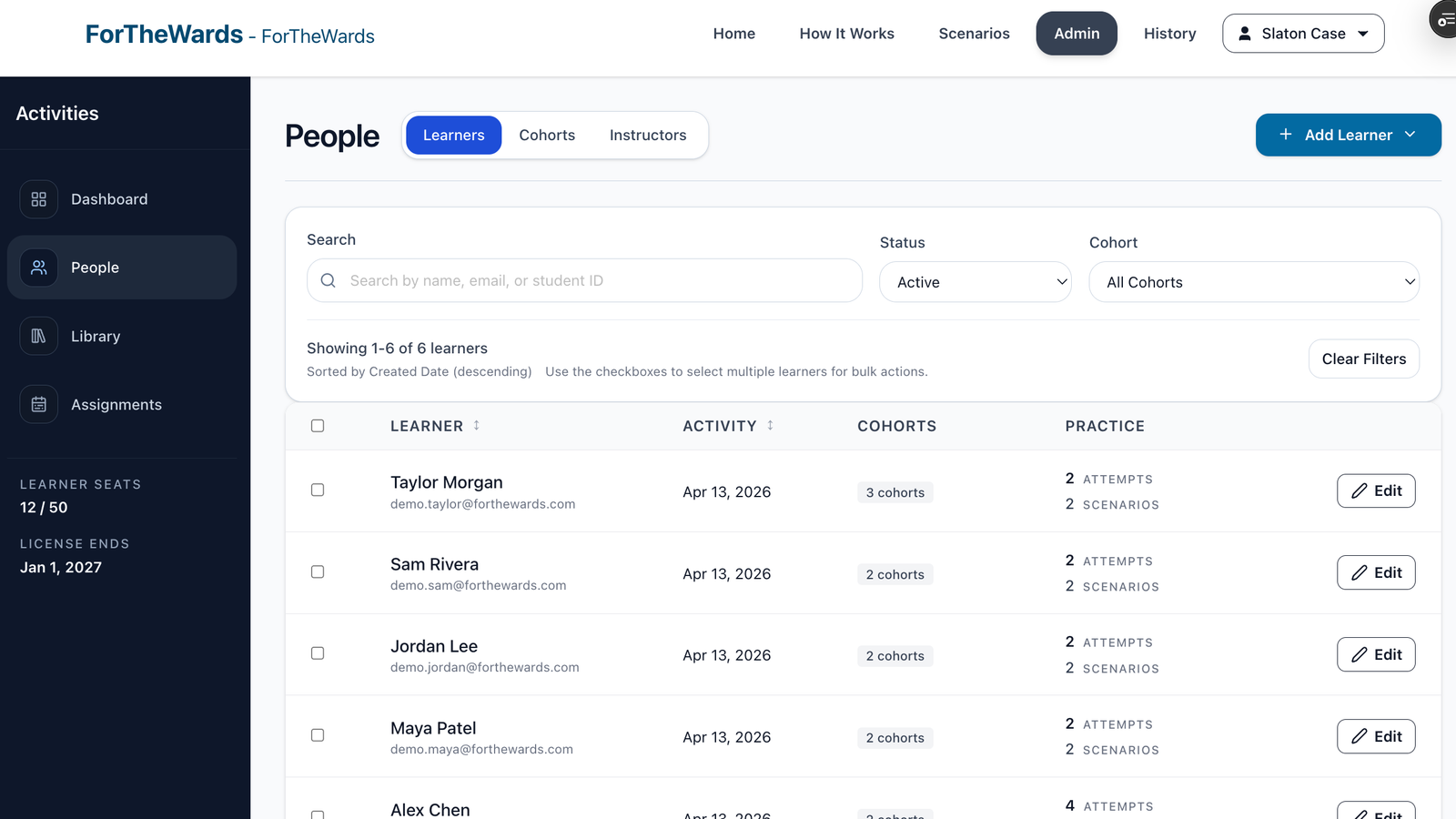
What to notice:Learners can be managed individually or as assigned groups.
Open The Scenario Library
Use the Shared Library for ready-made scenarios, or the Institution Library for scenarios created by your program. Click "Generate New Scenario" to make a new case.
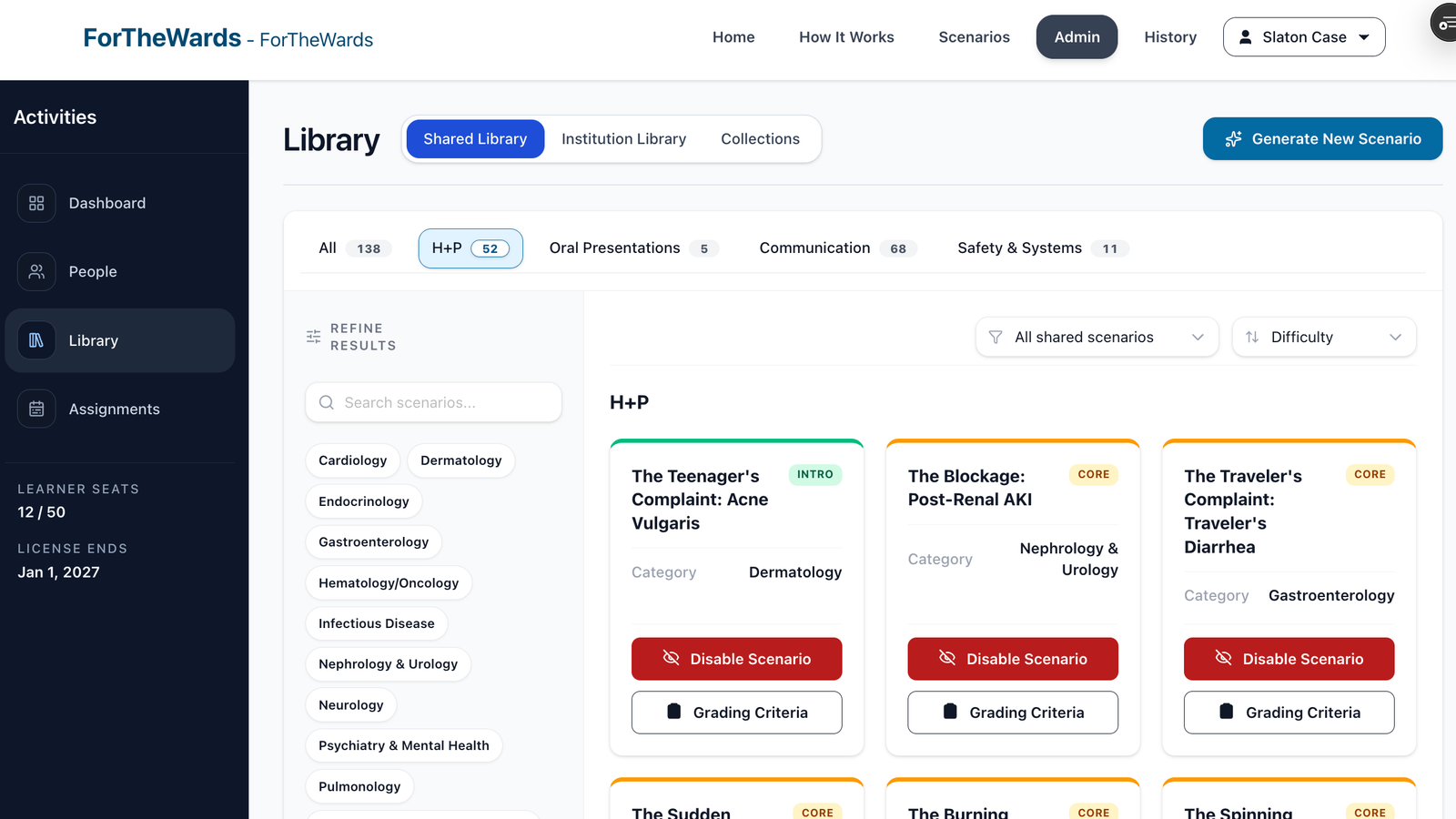
What to notice:Shared Library is common content. Institution Library is your local content.
Build A Draft In Chat
Answer the setup questions in chat. The chat collects the learner level, clinical setting, key behaviors, unacceptable behaviors, and limits for the case. Then click "Build Draft".
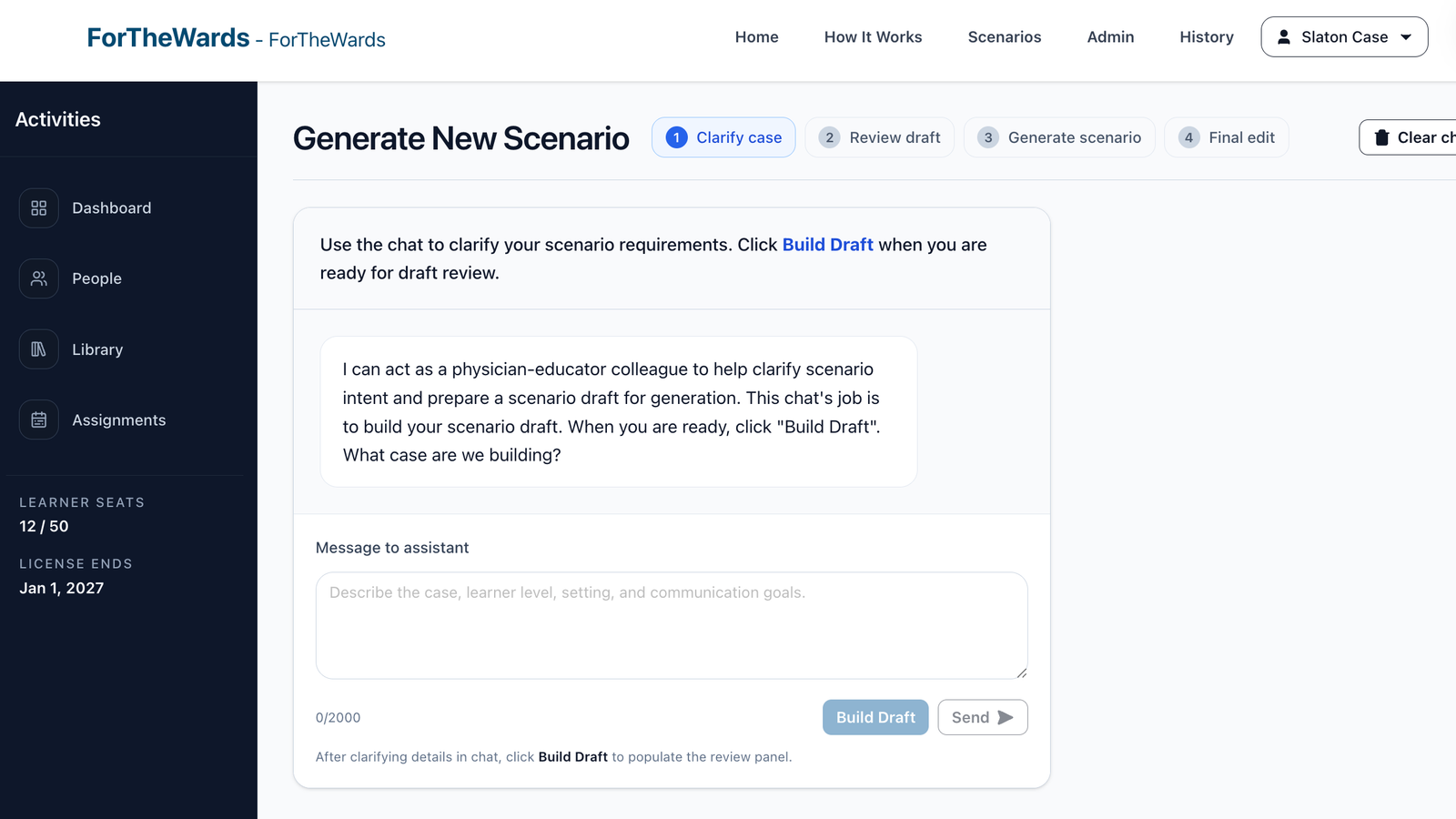
What to notice:"Build Draft" turns the chat into a structured case outline.
Review Before Generating
Check the structured draft before the full scenario is generated. Review the learner, setting, expected behaviors, limits, and patient situation. Click "Approve & Generate Scenario" when it looks right.
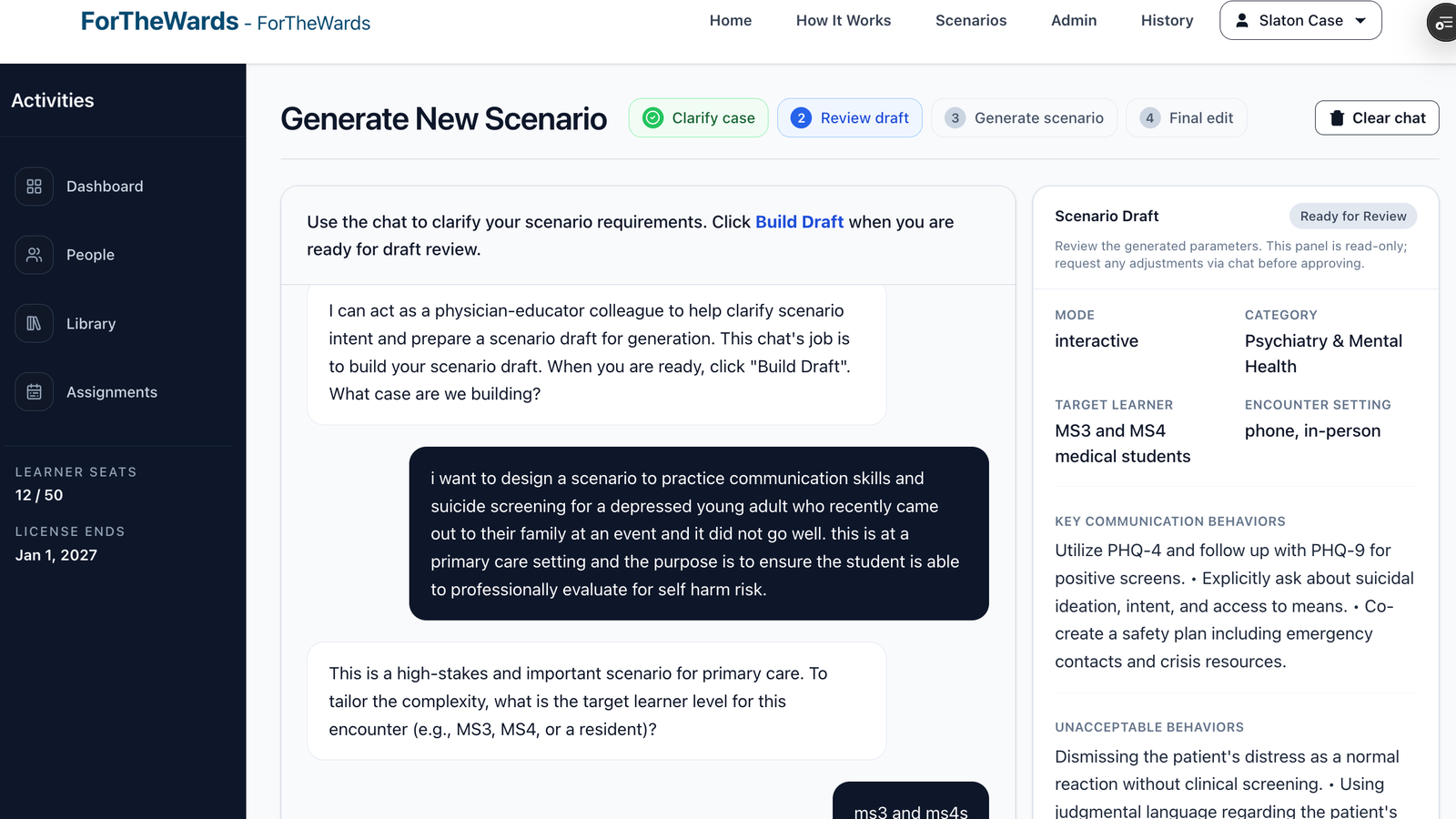
What to notice:This review step lets you catch unclear or off-scope details early.
Make Final Edits
Use Final Edit to adjust the patient character, the learner briefing, and the rubric. Save when the scenario is ready for learners.
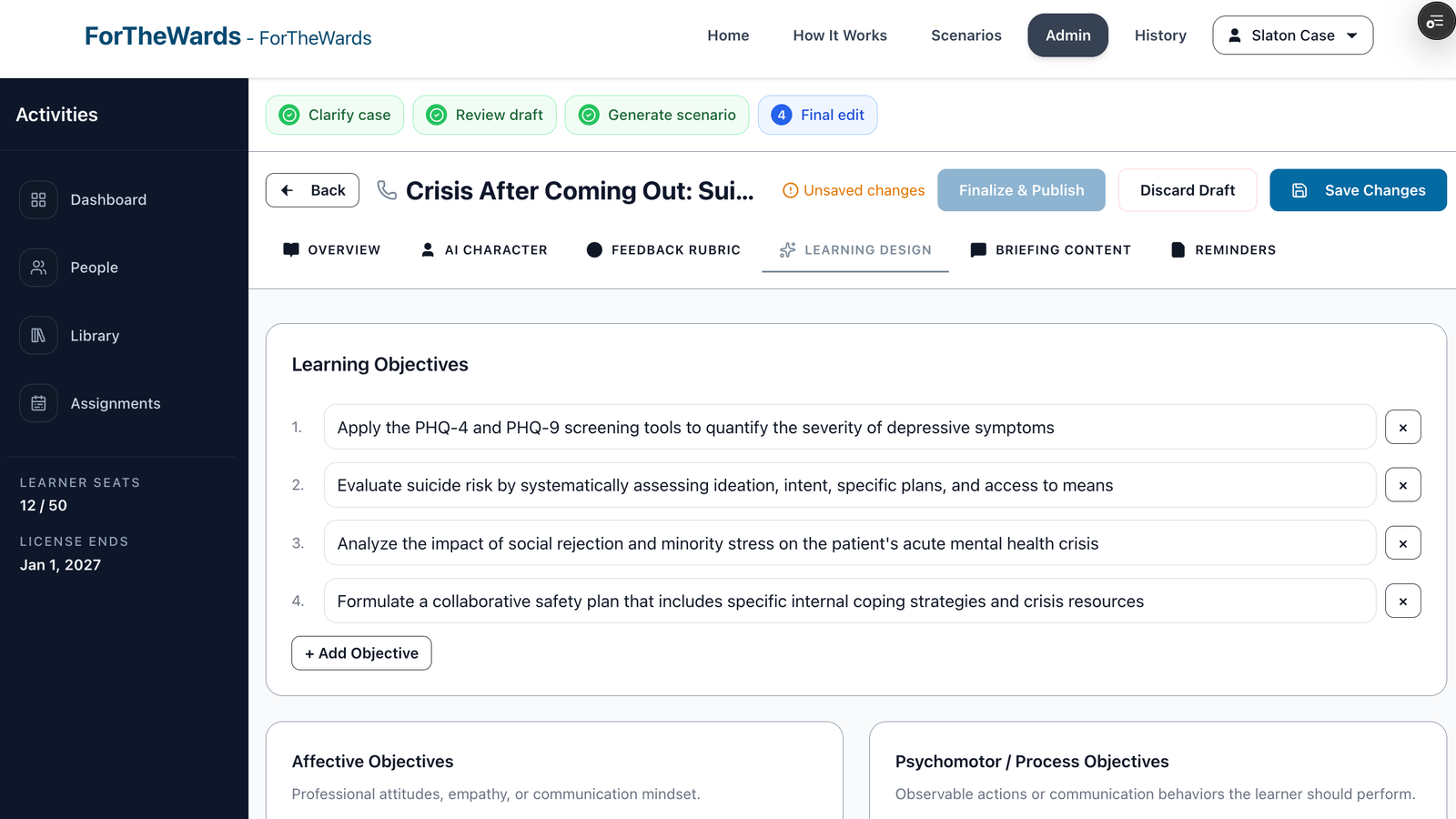
What to notice:The generated scenario remains editable before it is assigned.
Create An Assignment
Create an assignment by choosing one or more collections, selecting the cohorts who should receive it, and setting release and due dates. A collection is a set of scenarios assigned together.
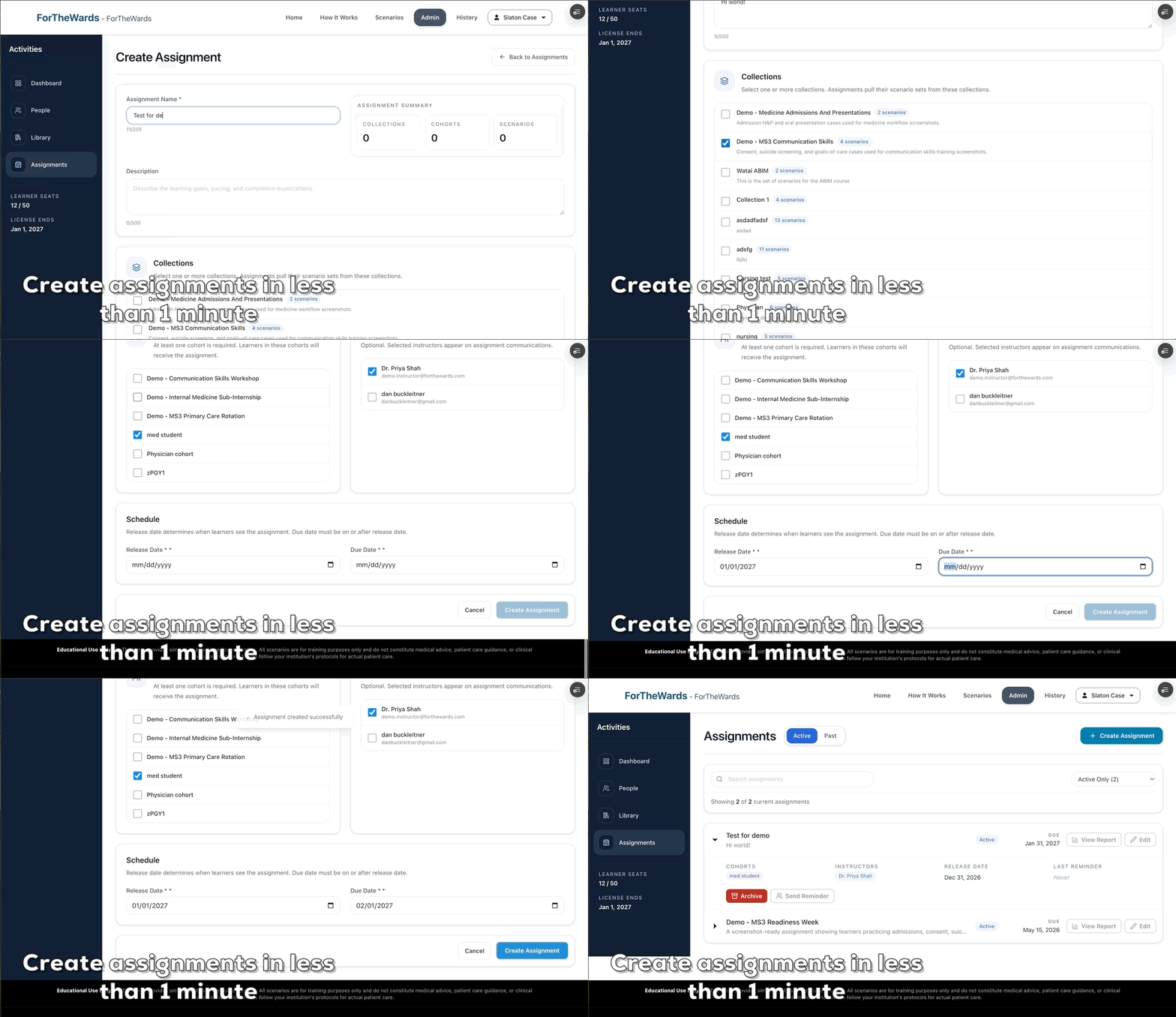
What to notice:Assignments connect specific scenario sets to specific learner groups.
Monitor Assignment Progress
Use the Assignments page to see which assignments are active, who they were assigned to, and whether learners are making progress. Open the report view when you need more detail.
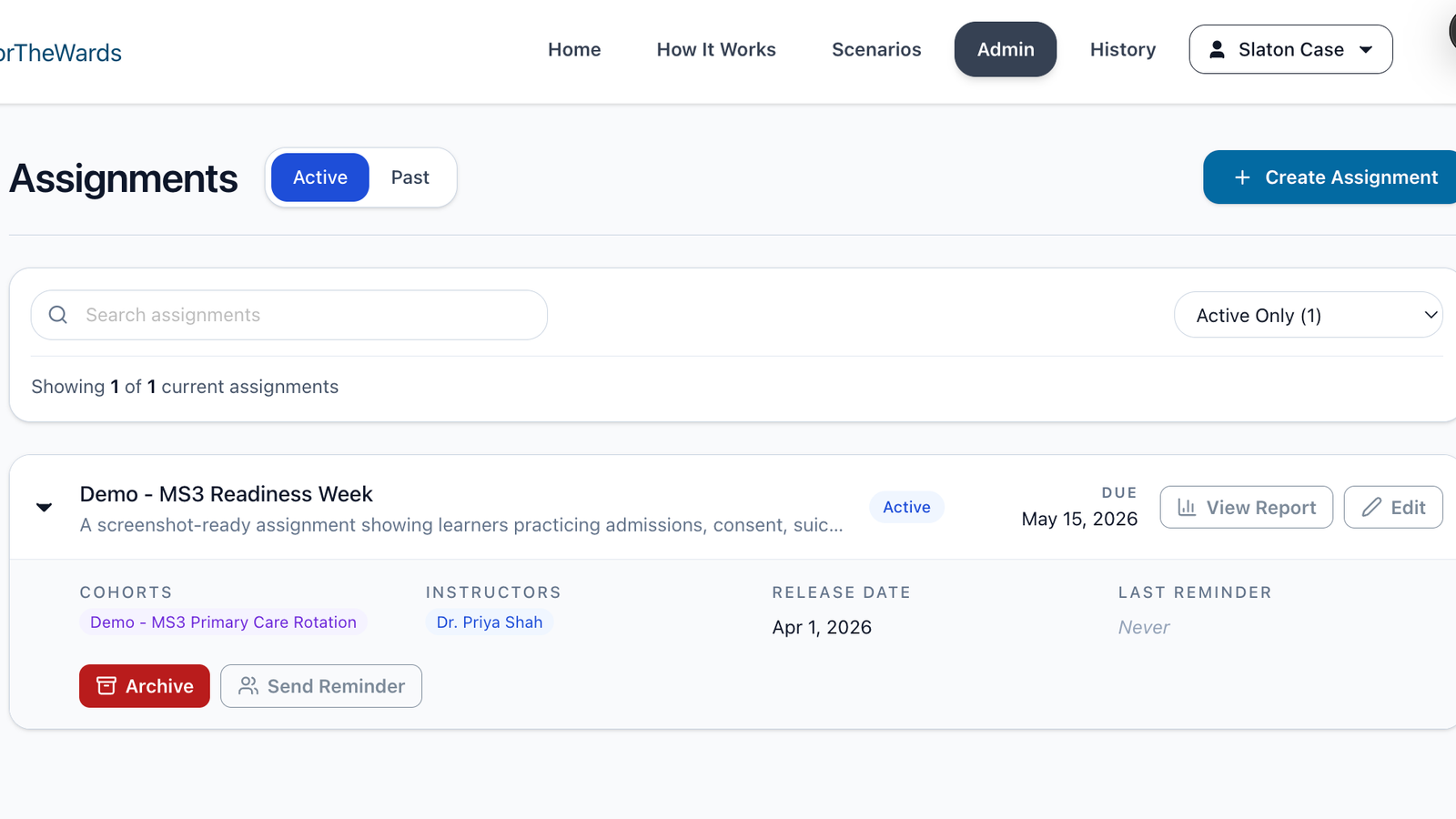
What to notice:The assignment list is the day-to-day monitoring view.
Review The Assignment Report
Use the report view to review completion, learner attempts, and rubric results. This is where instructors can see what learners did well and what may need reteaching.
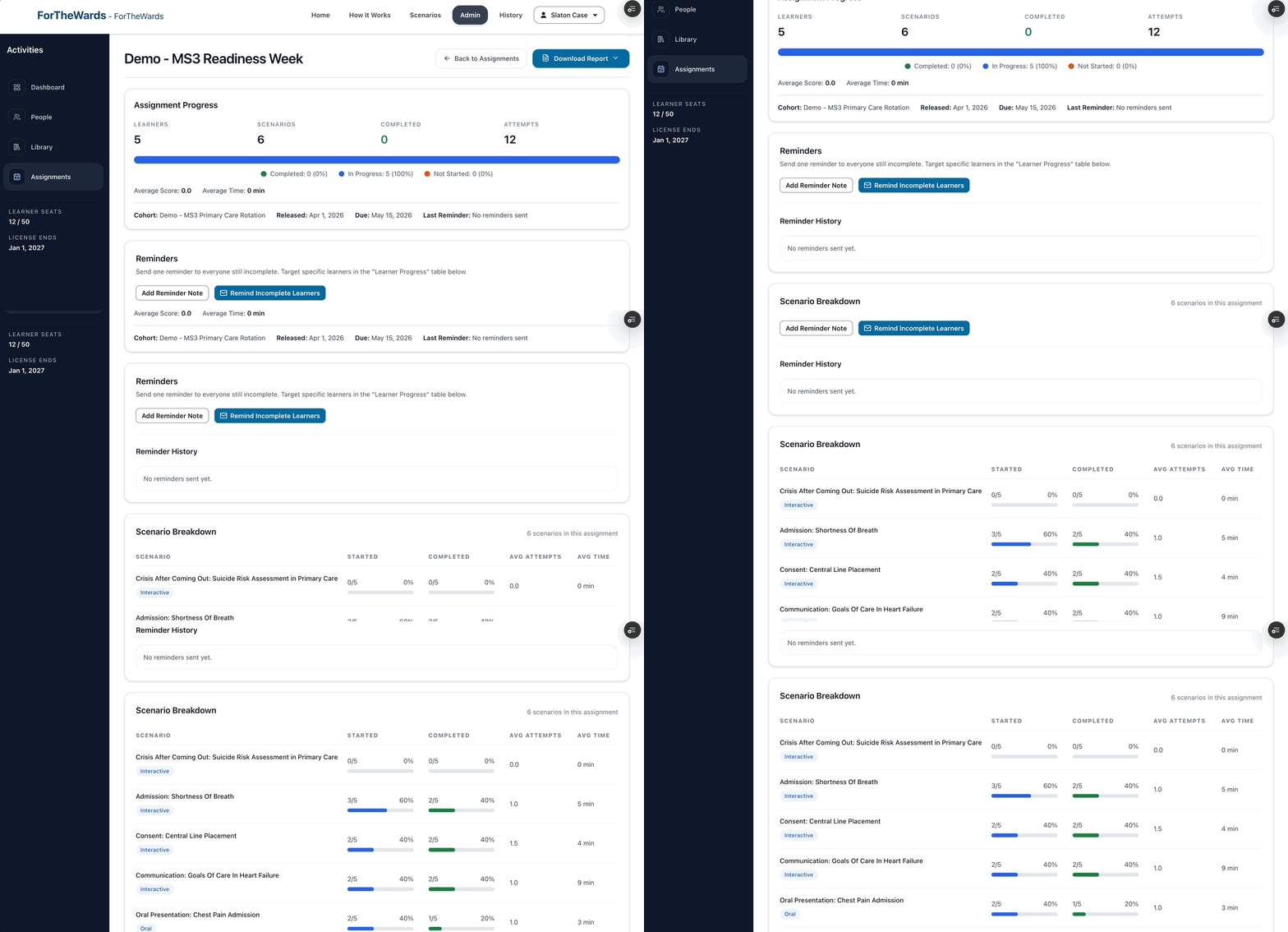
What to notice:The report connects assigned work to learner performance.
Learner Experience
Learners move from case practice to presentation to feedback in one clear loop.
Practice Admissions
Learners practice admission-style encounters, including focused history, clinical prioritization, and clear next steps.
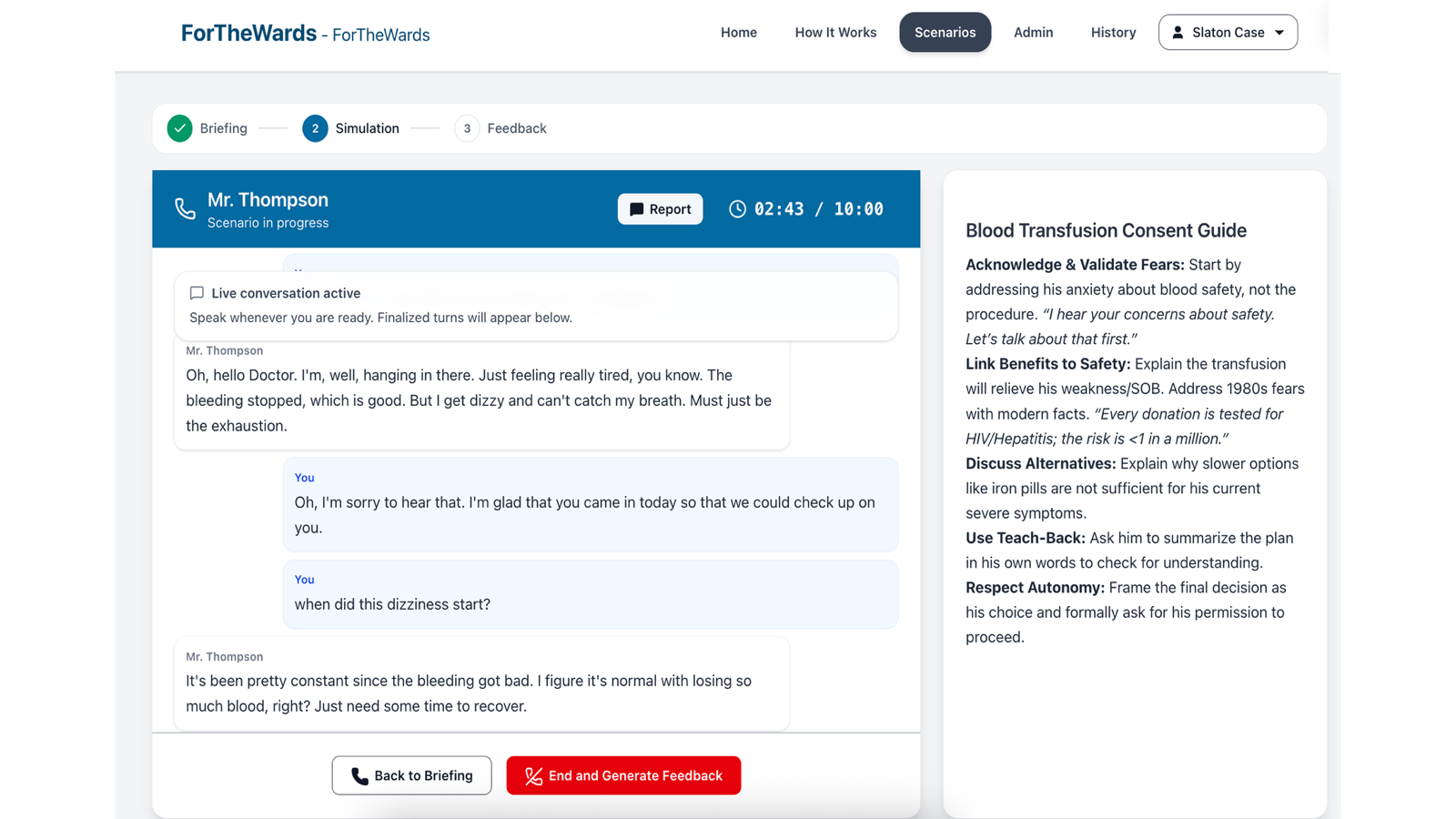
What to notice:The case responds to learner choices while staying within the scenario goals.
Practice Communication Skills
Learners practice the conversations that are hard to rehearse on the wards, including consent, goals of care, suicide screening, consult calls, family updates, and de-escalation.
What to notice:Scenarios can focus on specific professional communication behaviors.
Oral Presentation Practice
After the encounter, learners practice presenting the case clearly and concisely.
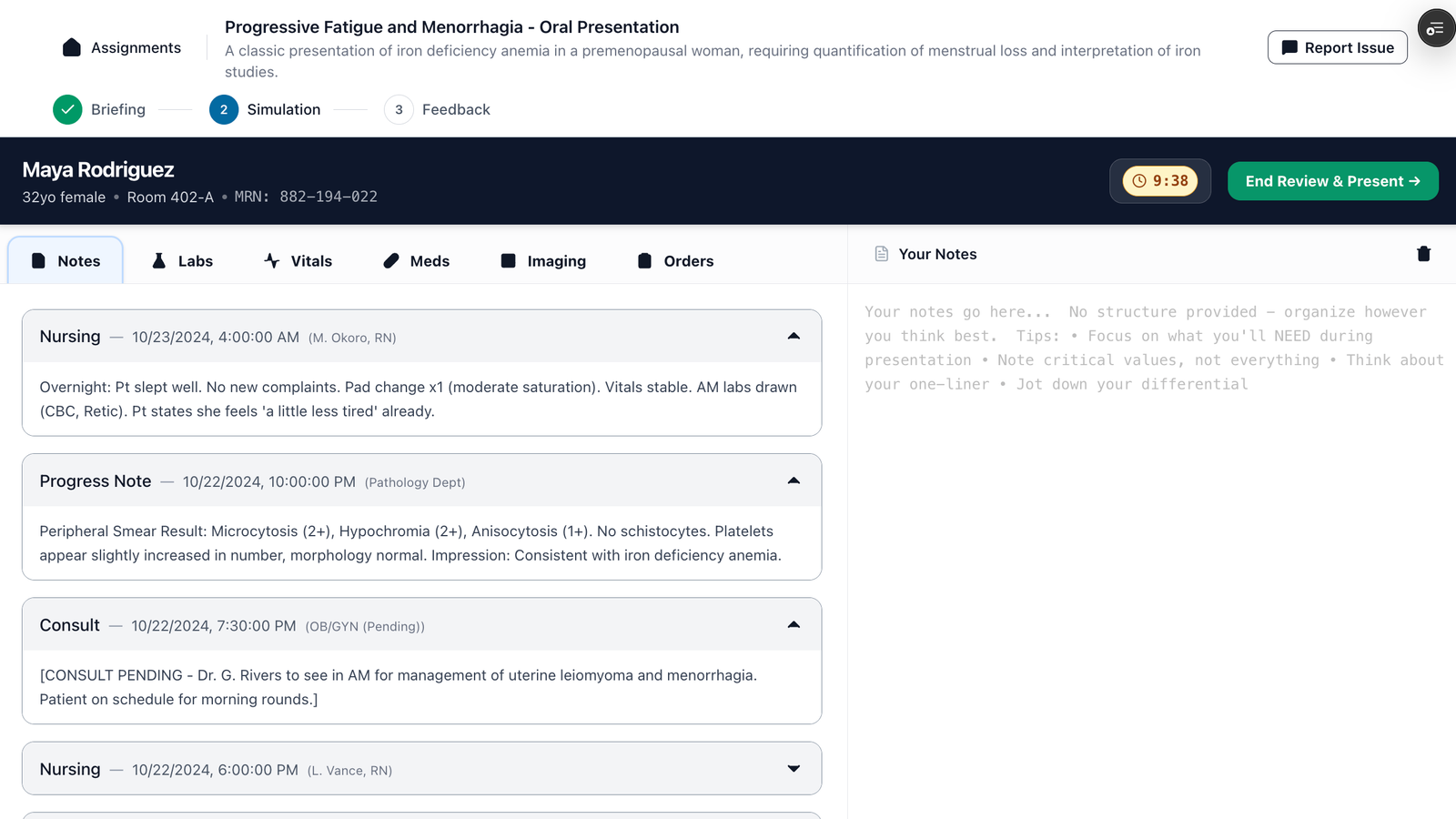
What to notice:Presentations are evaluated for structure and clinical reasoning.
Structured Rubric Feedback
Learners receive immediate rubric-based feedback that shows what was met, what was missed, and what to improve next.
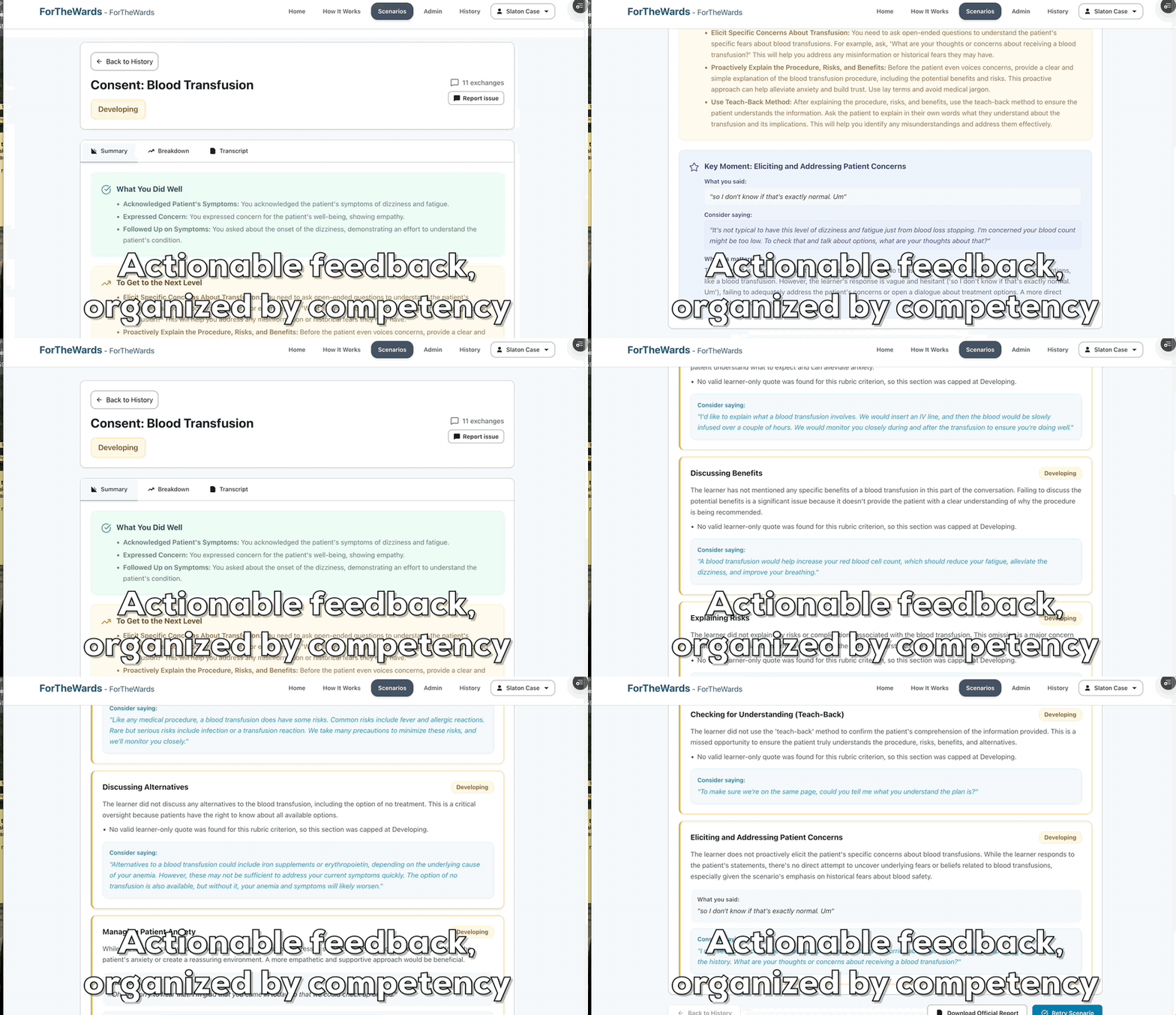
What to notice:Feedback is tied to specific rubric criteria.
Ready to review this workflow with your curriculum?
We can walk through scenario generation, assignment setup, and rubric analytics using your own training goals.